Soyuz
GitHub

File explorer for Windows, macOS and Linux

Move fast. Never wait.

Soyuz is a keyboard-first file explorer built in Rust for speed and reliability. Every copy, move and delete runs as a background job you can pause, cancel and undo, so the interface stays instant even when a network share does not.

Free and open source (MIT) · No telemetry · No account

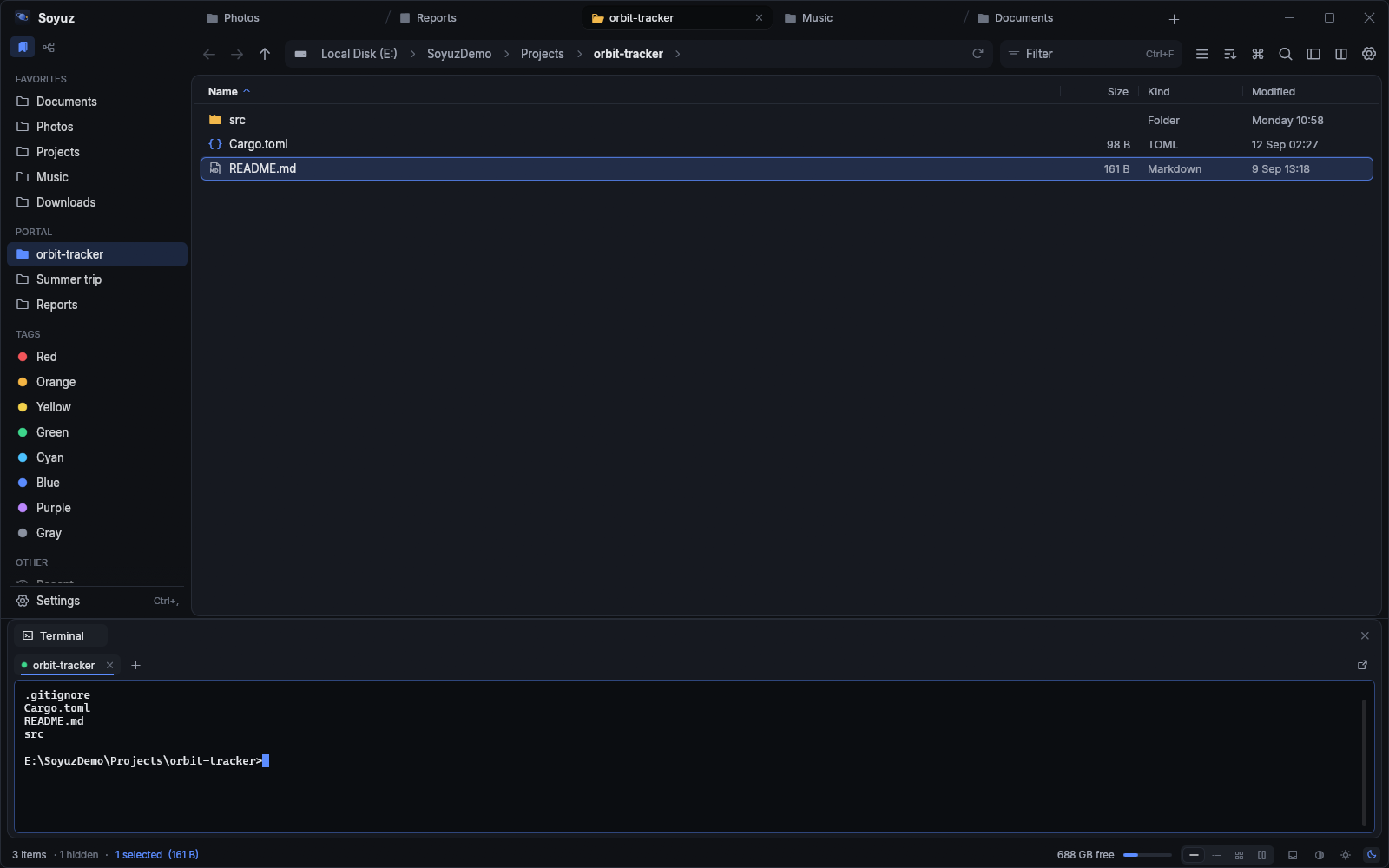
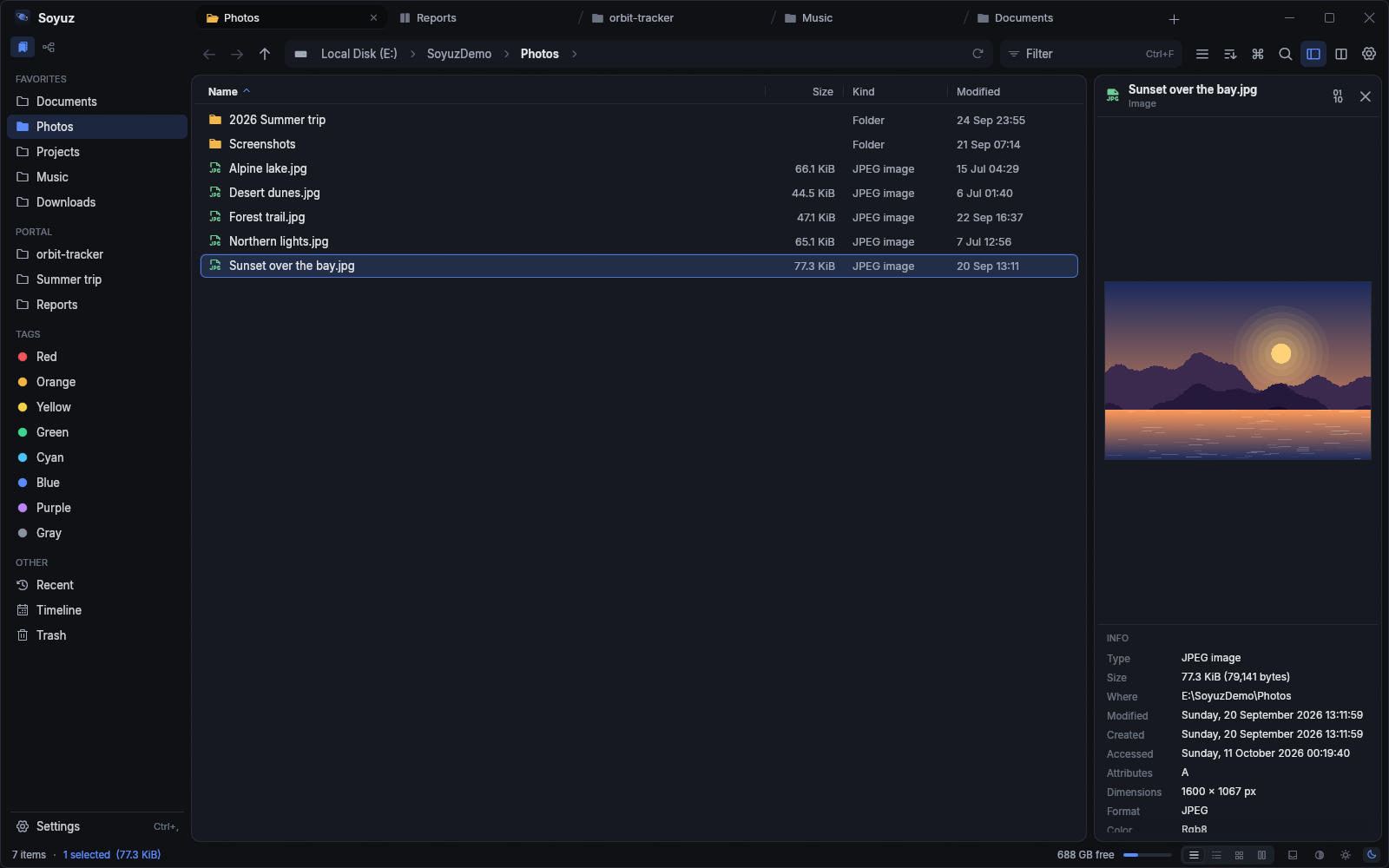
The Soyuz window in its dark theme: a sidebar with favorites and drives, a folder shown in details view with name, size and date columns, and a preview pane showing the selected file.
Details view with the preview pane. A folder of 100,000 entries scrolls as smoothly as one with ten.

Engineered to be dependable

Soyuz takes its name from the spacecraft that has flown for decades by being simple and reliable. Eight principles shape every part of the app.

  • Keyboard-first

    Every action is in the command palette with its shortcut, and every shortcut can be rebound. Start from the Explorer, Commander, Finder or Vim preset and make it your own.

  • Never blocks

    Listings, previews, thumbnails and all disk access run off the interface thread. Folders stream in as they are read, and a slow drive never freezes the window. Every window shares one process, so another window costs little memory.

  • Every operation is a job

    Copy, move, delete, extract and checksum show real progress. Pause, resume or cancel any job, and decide exactly what happens when names collide.

  • Trash first, then undo

    Deleted files go to the trash by default. Copies, moves, renames, new items and archive edits can all be undone and redone.

  • No shell backend

    Soyuz works with the file system and the kernel directly, never through the Windows shell, Finder or a desktop file layer. Behaviour is predictable, cancellable and consistent on every machine.

  • Fully configurable

    Every behaviour has a setting, in the Settings window and in a single config.toml. Edit the file in any editor and Soyuz applies it within a second, comments intact.

  • Private by default

    No telemetry, no accounts, no ads. Once a day Soyuz asks GitHub whether a newer release exists: one request with no identifiers, which a switch in Settings turns off. Nothing is downloaded or installed until you click.

  • Open source

    Written in Rust and MIT licensed. Read the code, build it with stable Rust and contribute.

A tour of the cockpit

Everything shown here ships today on Windows, macOS and Linux. Most of it is a single shortcut away.

Two panes, or four

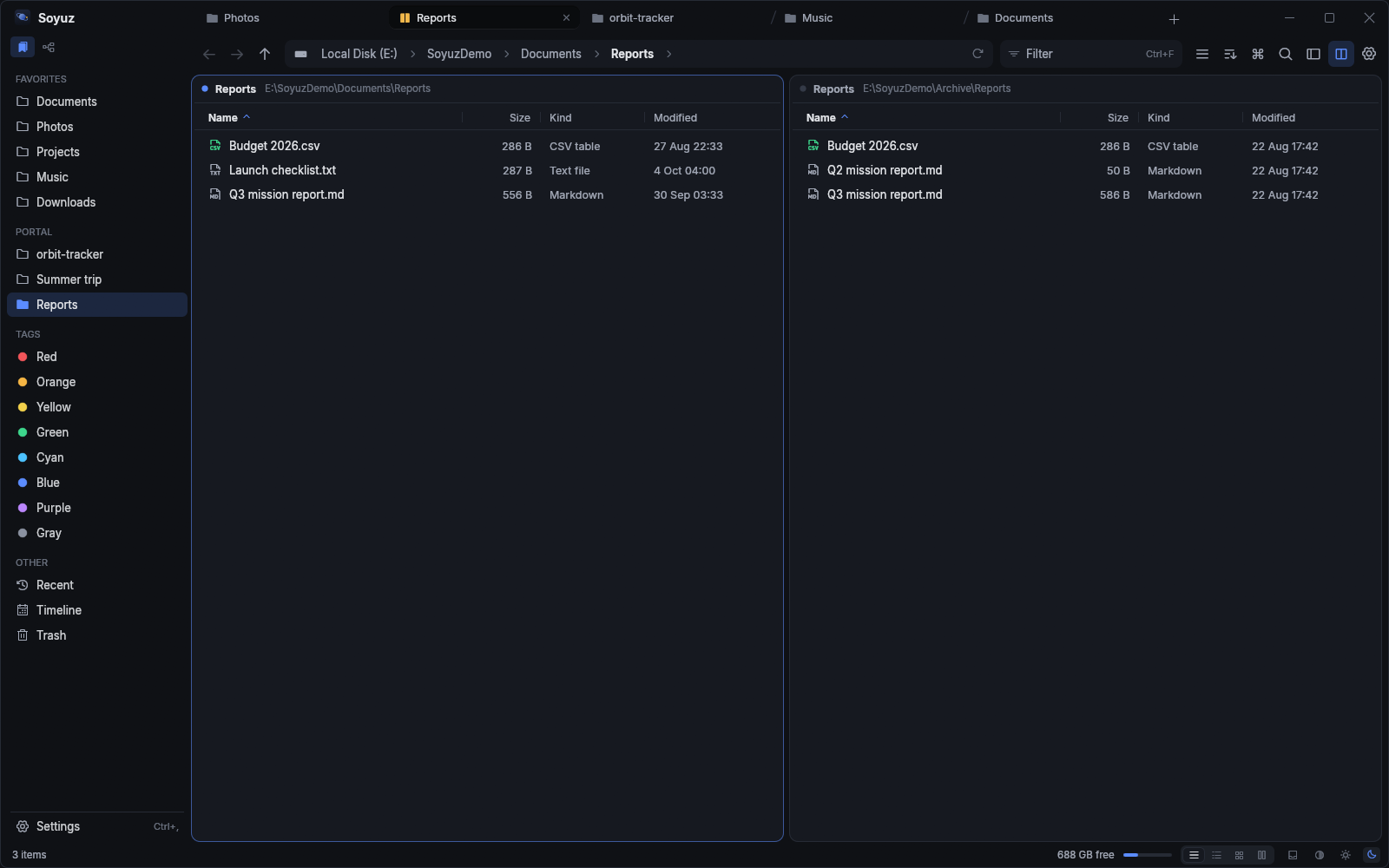
Work side by side in dual panes, or split the window into a 2×2 grid. Copy or move to the other pane with a single key. Tabs support groups, pinning and tear-off windows, and any layout can be saved as a workspace.

F9 dual paneShiftF9 quadF5 copy acrossF6 move across

Two folders side by side in two panes, each with its own tabs and breadcrumb path.
Dual pane, each side with its own tabs and history.

Look before you open

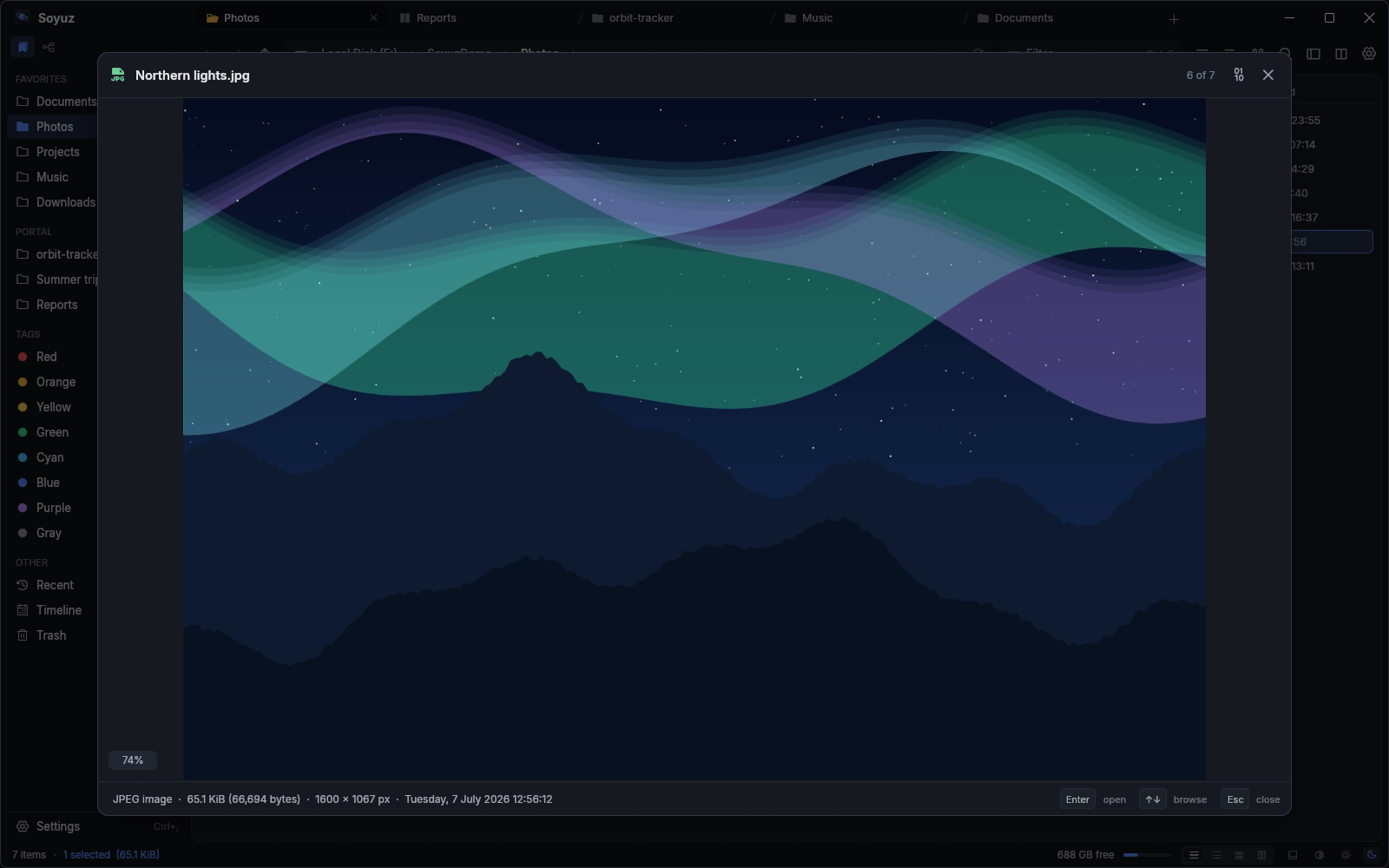
Quick Look and the preview pane display images, syntax-highlighted code, Markdown, PDF pages, Office documents, EPUB, fonts, 3D models, audio with waveform and playback, video with a full player, binaries in hex and side-by-side diffs. A folder's preview shows its README or notes. Archives open just like folders.

Space Quick LookAltP preview pane

Quick Look showing a large photo over the file list, with its name and dimensions underneath.
Quick Look on a photo. Arrow keys move to the next file.

Every action, one search away

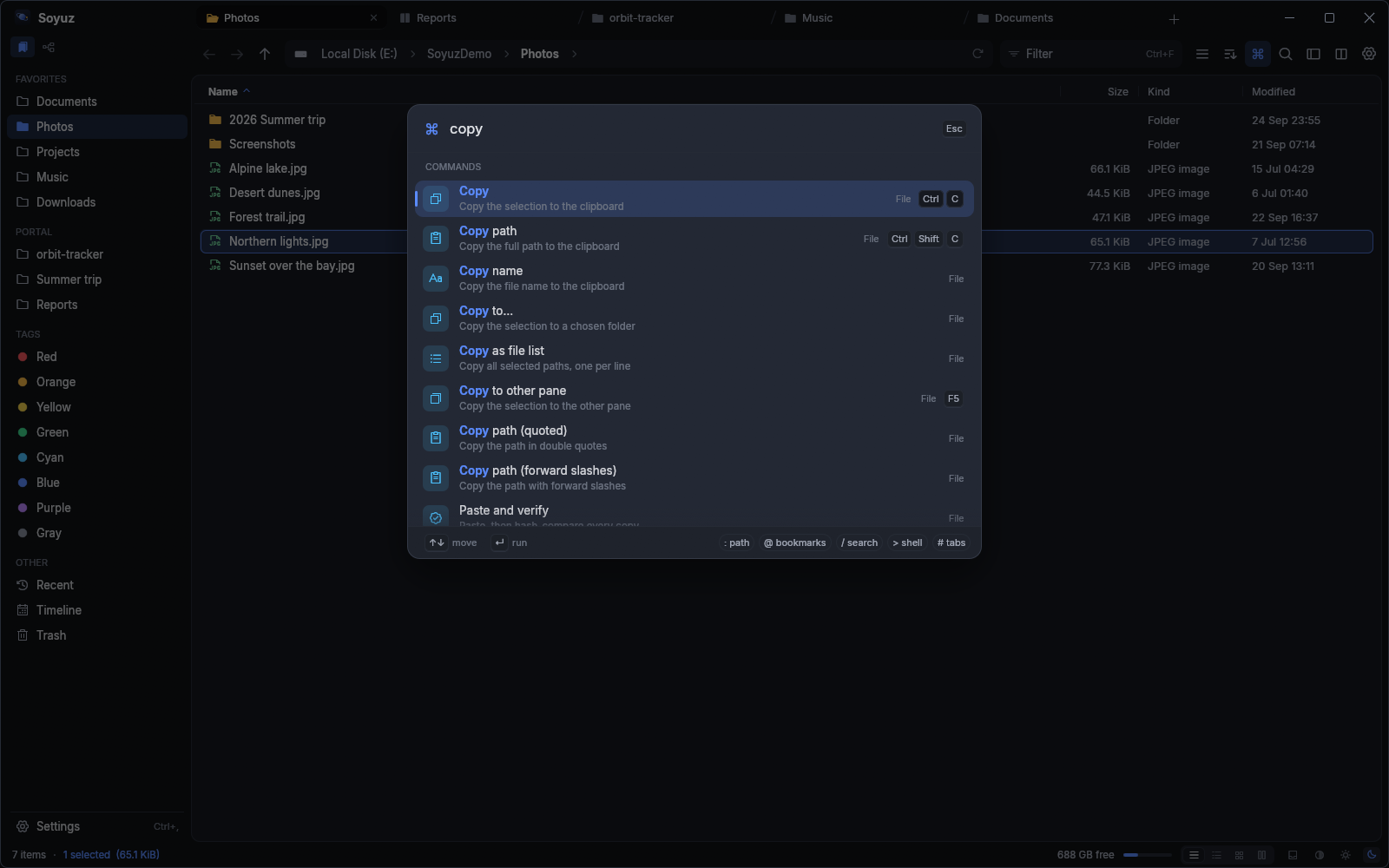
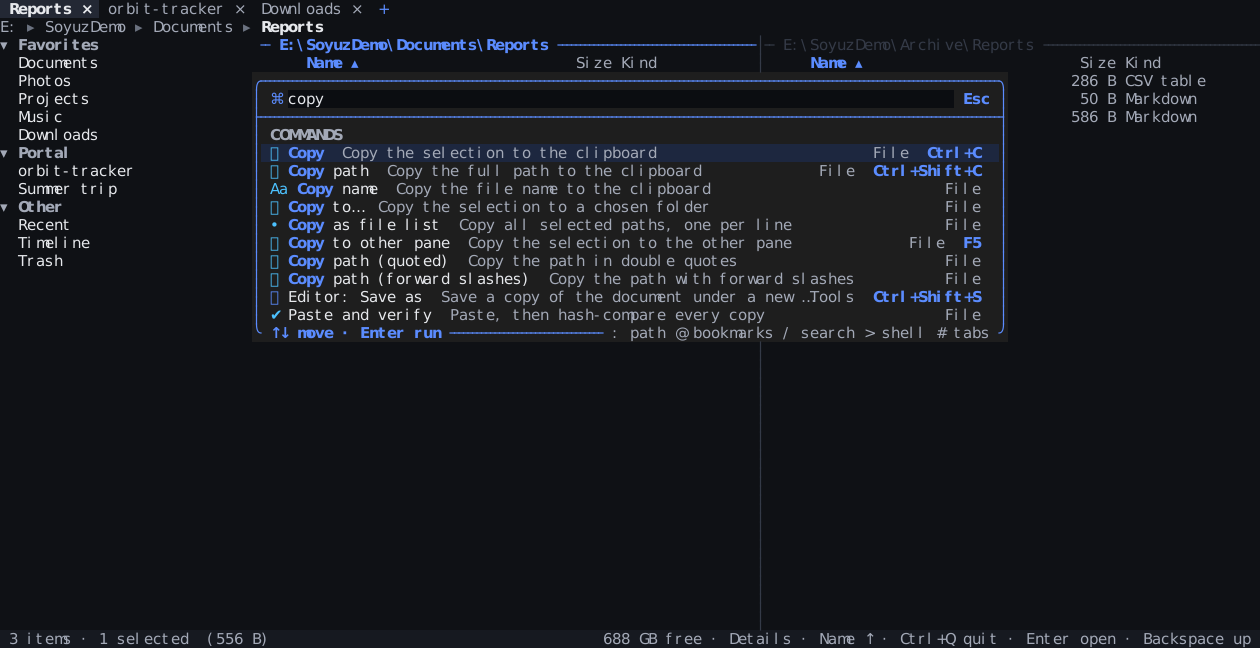
The command palette finds any action by name and shows its shortcut, so you learn the keys as you work. Go to folder takes you to the places you visit most. Bind anything, including chords and two-key sequences like g g.

CtrlK command paletteCtrlP go to folder

The command palette open over the window, listing matching actions with their keyboard shortcuts on the right.
The command palette lists every action with its current shortcut.

Jobs you can steer

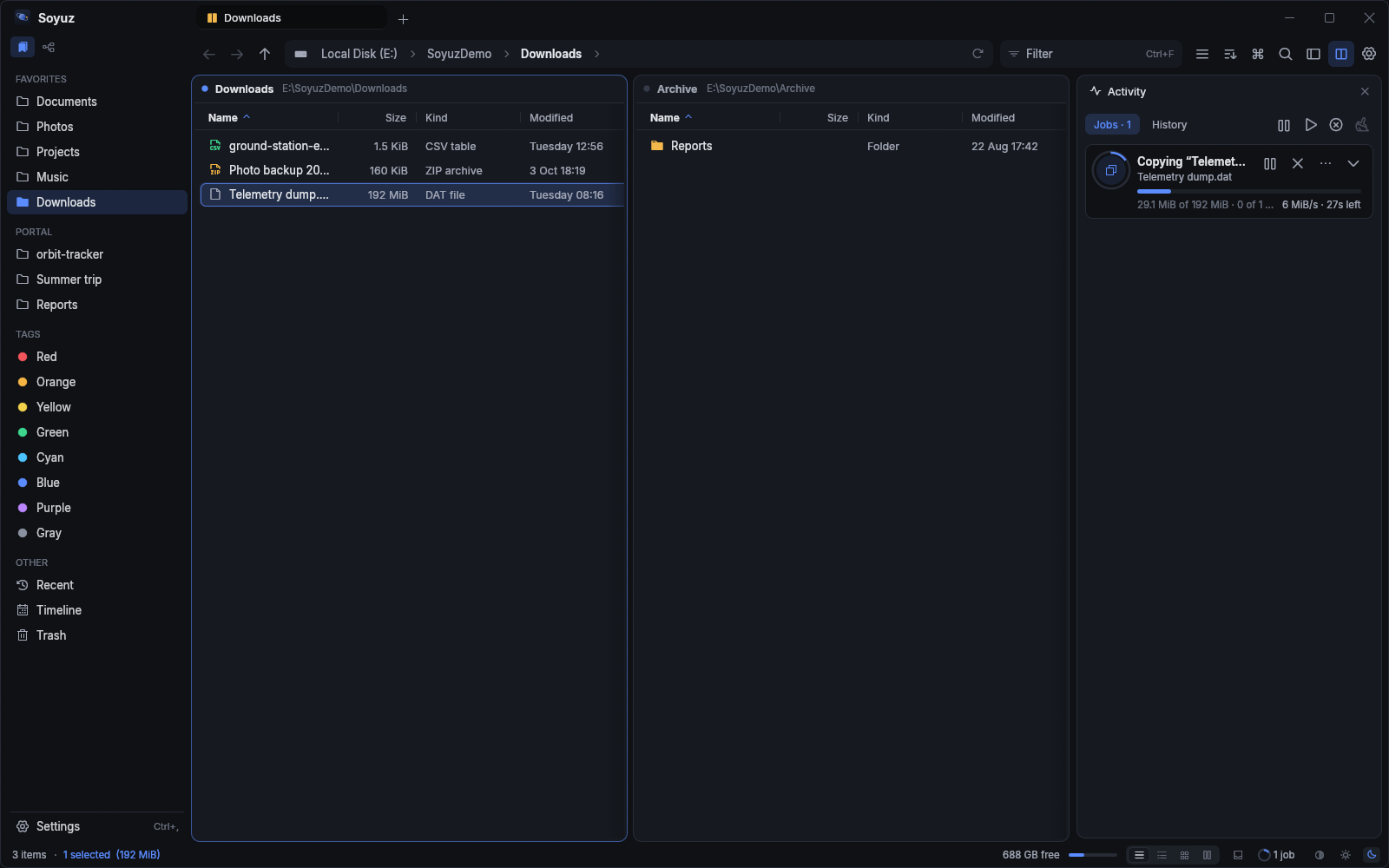
The activity panel shows every job with its speed, a live graph and the time remaining. Jobs queue per drive, so two copies to the same disk never compete. Conflicts open a side-by-side comparison, and after a crash or power cut, unfinished jobs resume exactly where they stopped. If a job crawls, “Why is this slow?” shows where its time went.

CtrlShiftJ activity panelCtrlZ undo

The activity panel with a copy job in progress: a progress bar, transfer speed, a speed graph and the remaining time, with pause and cancel buttons.
A copy in progress, with pause and cancel at hand.

A terminal that follows you

Your own shell, docked below the file list and always in the current folder. It works both ways: cd somewhere and the file list follows. Ctrl-click opens paths and links.

Ctrl` terminal

A terminal panel docked below the file list, with a shell prompt in the same folder the pane is showing.
The built-in terminal, opened in the current folder.

Find out where the space went

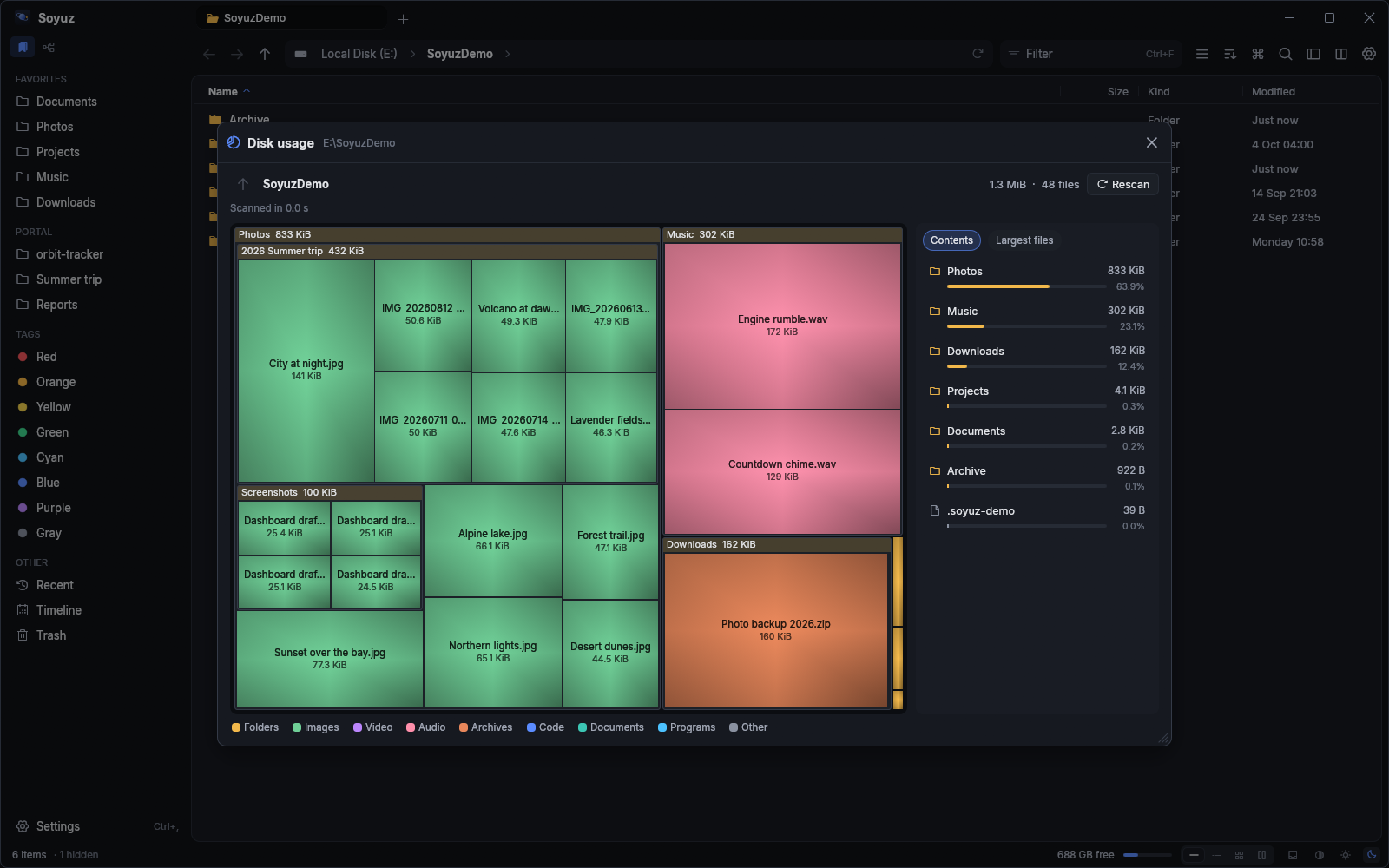
The disk-usage treemap shows folders by size; click to zoom in. Compare two folders and sync them one way or both ways, with saved and scheduled profiles, or see the differences as a treemap coloured by what changed. Find duplicates by size and content, and send the extra copies to the trash.

A disk-usage treemap: nested colored rectangles sized by folder size, with a list of the largest items beside it.
The treemap tool, with the largest items listed beside it.

Video and audio, built in

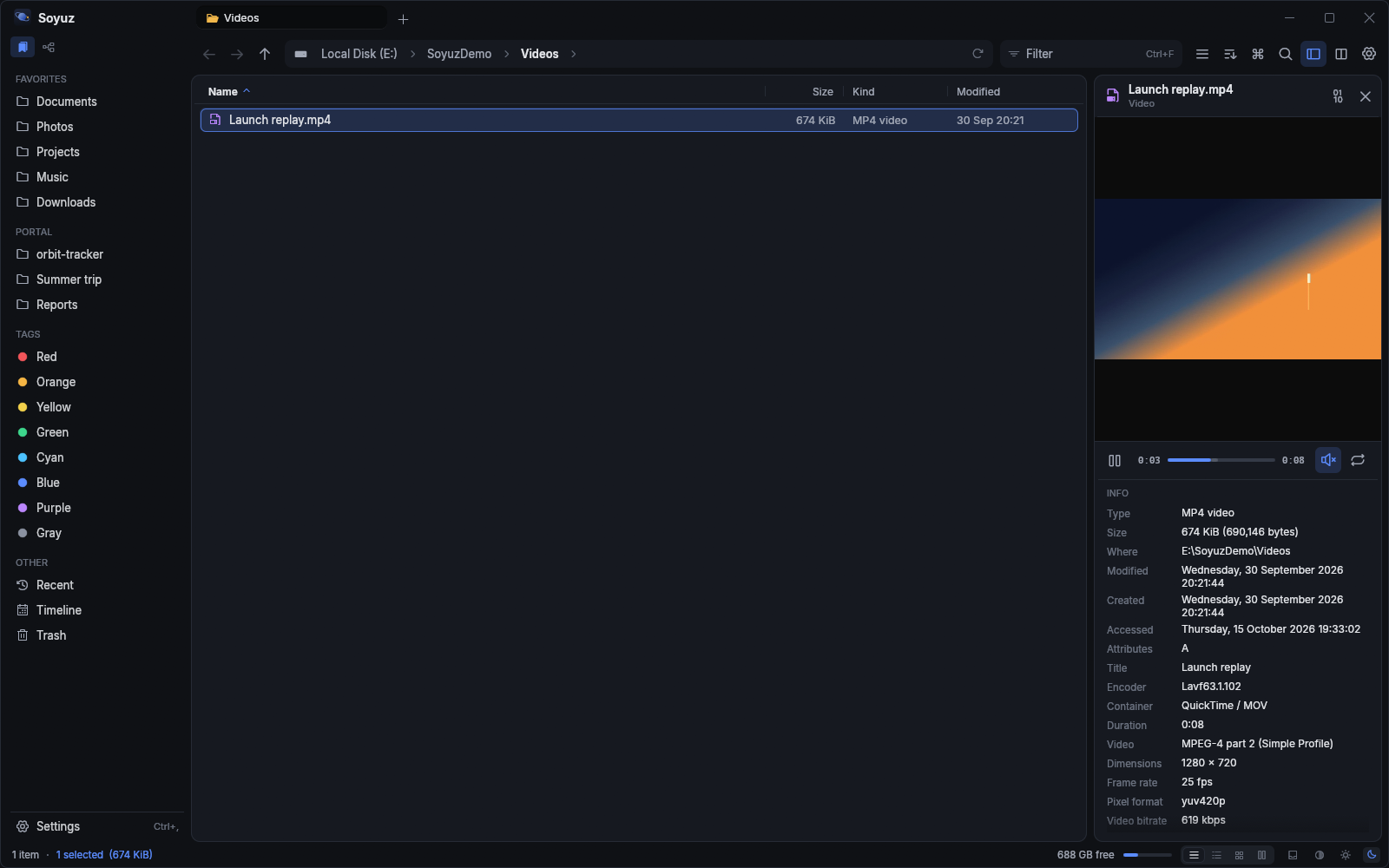
Play video and audio in the preview pane or Quick Look, with seeking, volume and hardware decoding. Convert, trim, extract audio or save a frame: each runs as a background job you can pause and cancel like any other.

Space Quick LookAltP preview pane

A video in the preview pane beside the file list, with play and pause, a scrubber, volume, mute and loop controls.
The player in the preview pane. The FFmpeg libraries ship with Soyuz.

Make it yours

Details, list, thumbnail grid, gallery and Miller columns, remembered for each folder. Five color themes (Orbit, Nord, Solarized, Rosé Pine and High Contrast), each in dark and light, plus your own theme files and the system accent color. The interface is available in English and Turkish and switches instantly.

Ctrl, settings

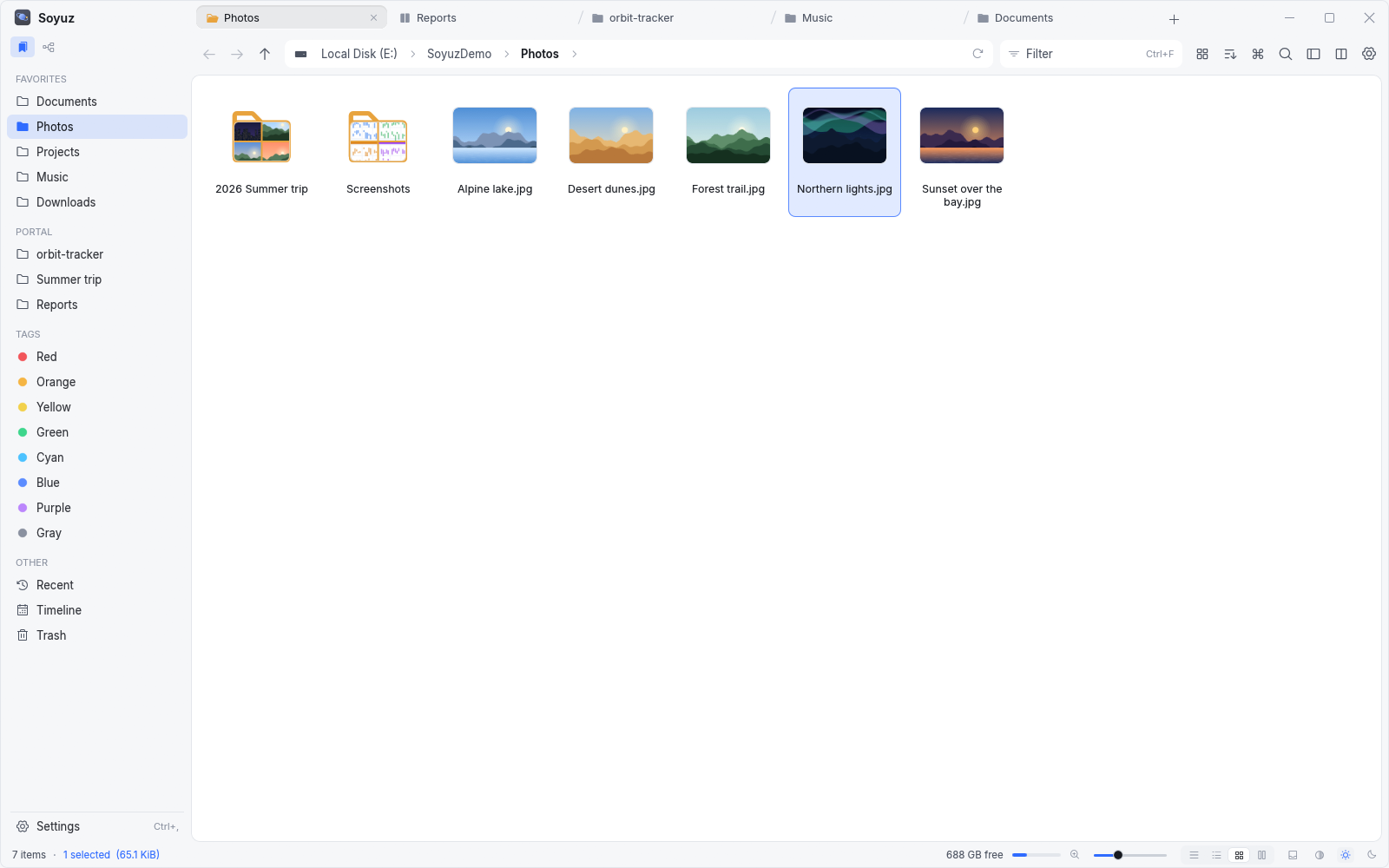
Soyuz in its light theme, showing a folder of photos as a grid of thumbnails, with folder icons that preview their contents.
The light theme, grid view with thumbnails.

A system monitor in a tab

See what your computer is doing without leaving your files. The monitor opens as an ordinary tab, in the window and in the terminal, and reads the system only while it is on screen.

Everything at a glance

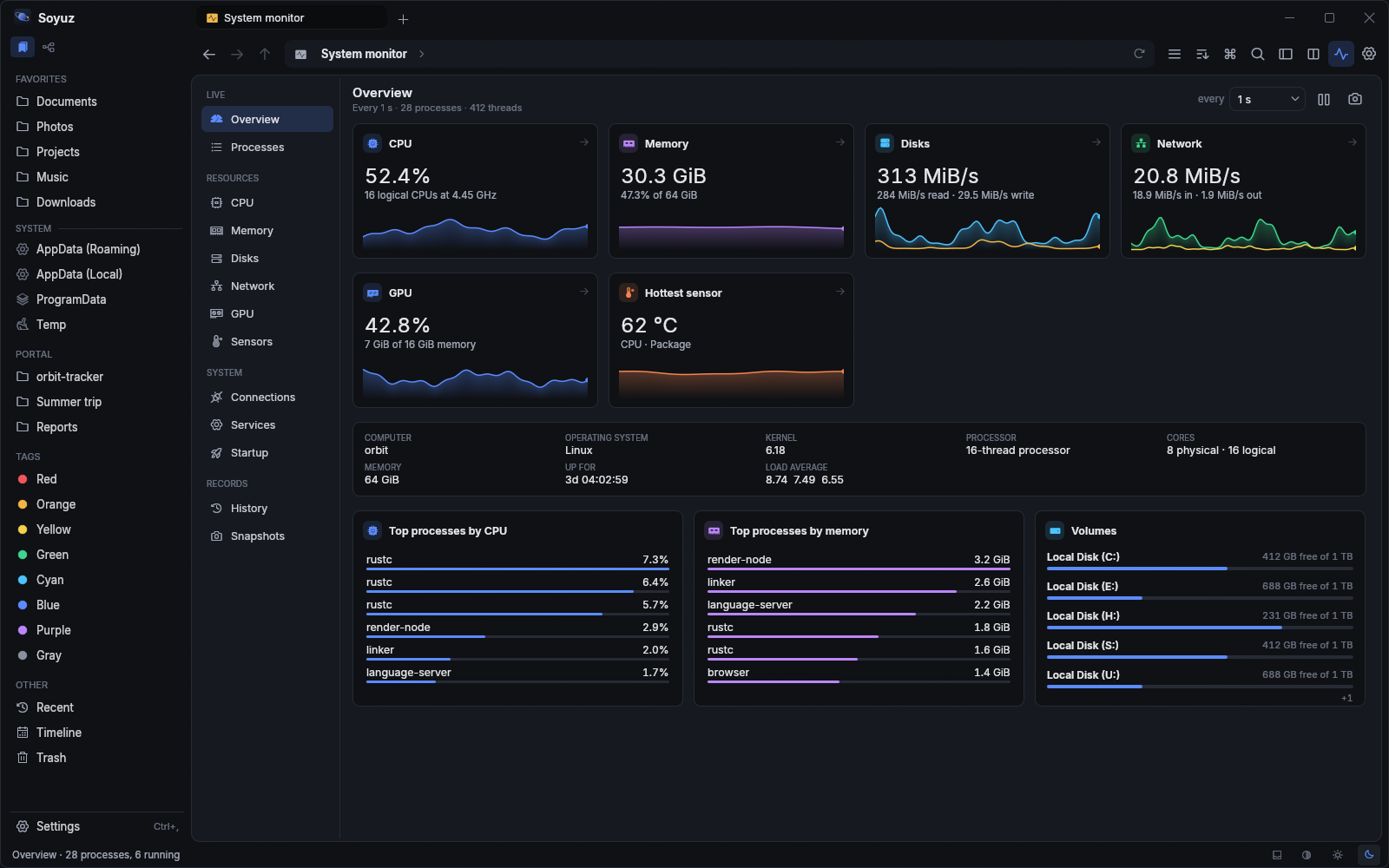
Live graphs for CPU, memory, disks, network and GPU, then a page for each with the detail behind it: every logical CPU, per-disk and per-interface rates, GPU engines, memory and clocks, temperatures, fans, power and batteries. Open connections, services and startup programs have pages of their own. What your system does not report shows as a dash, never as a made-up zero.

CtrlShiftY system monitor

The system monitor's overview page: cards with live graphs for CPU, memory, disks, network, GPU and temperature, the machine's details, the top processes by CPU and by memory, and volume usage.
The overview, with a page of its own for each resource.

Find any process

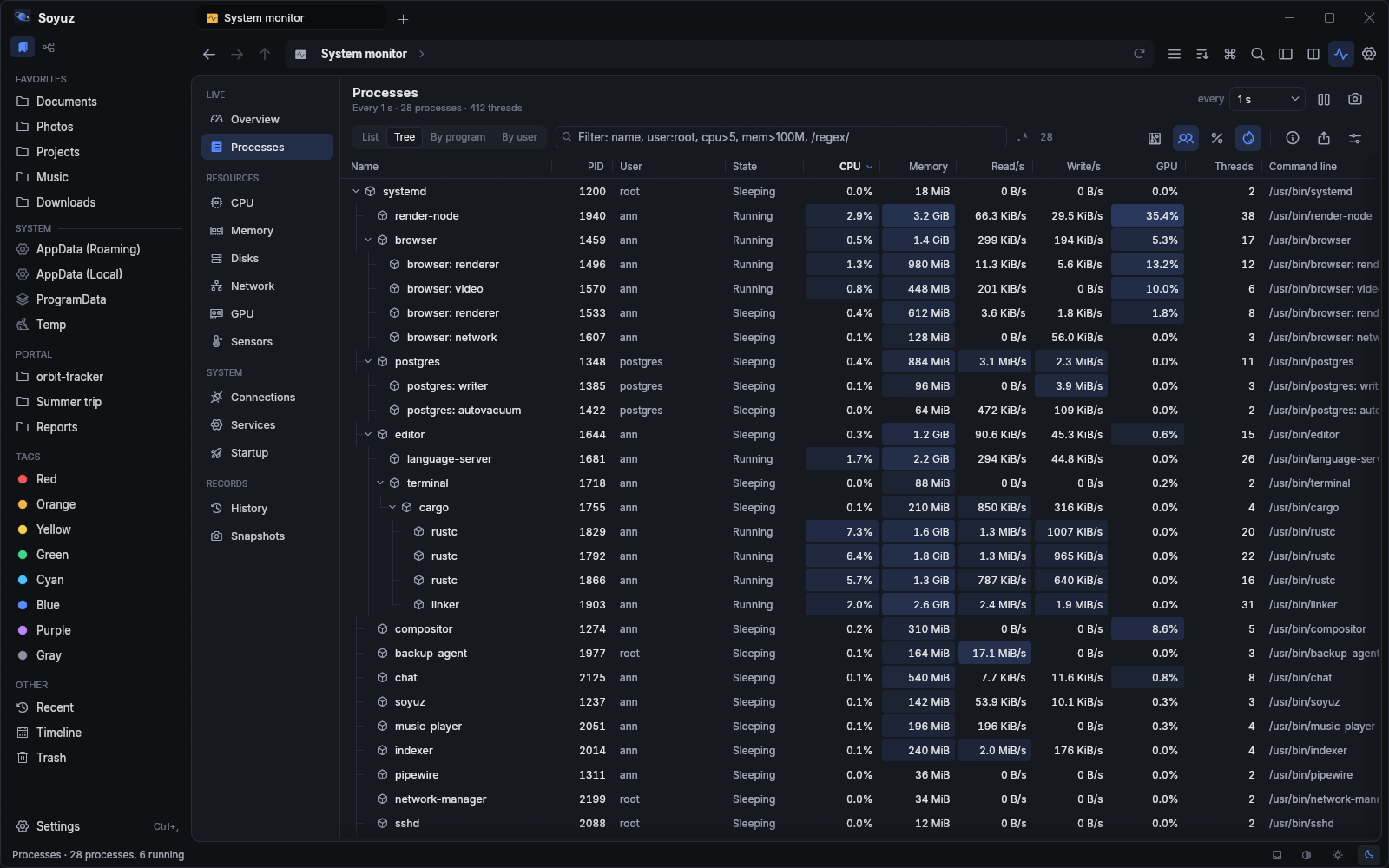
Show processes as a list, a tree of parents and children, or grouped by program or user. Choose your columns, their order and width from more than thirty, and they stay that way. Filter with plain words, regular expressions and column tests, or any mix of them. End, kill, suspend or re-prioritize, with a clear warning before you touch anything the system relies on.

firefox -helper /render.*gpu/ user:ann cpu>5 mem>100M

The process table in tree view, with columns for process id, user, state, CPU, memory, disk rates, GPU, threads and command line, and load shown as a tint in each cell.
The process tree, tinted by load.

History, snapshots and comparing

Nothing is recorded until you press Record. Then look back over what was recorded, kept for as many days as you choose, and see what was running at any moment; pause or stop whenever you like. A snapshot saves the whole system state: compare two, or one with now, to see what appeared, went away or changed. Alerts can warn you when CPU, memory or a temperature stays high, and save a snapshot of that moment.

Snapshots and exports mask command-line values that look like passwords. How much you see depends on the system: on macOS, services are read-only and temperature sensors are not read yet, and without administrator rights each system hides some details of other accounts' processes.

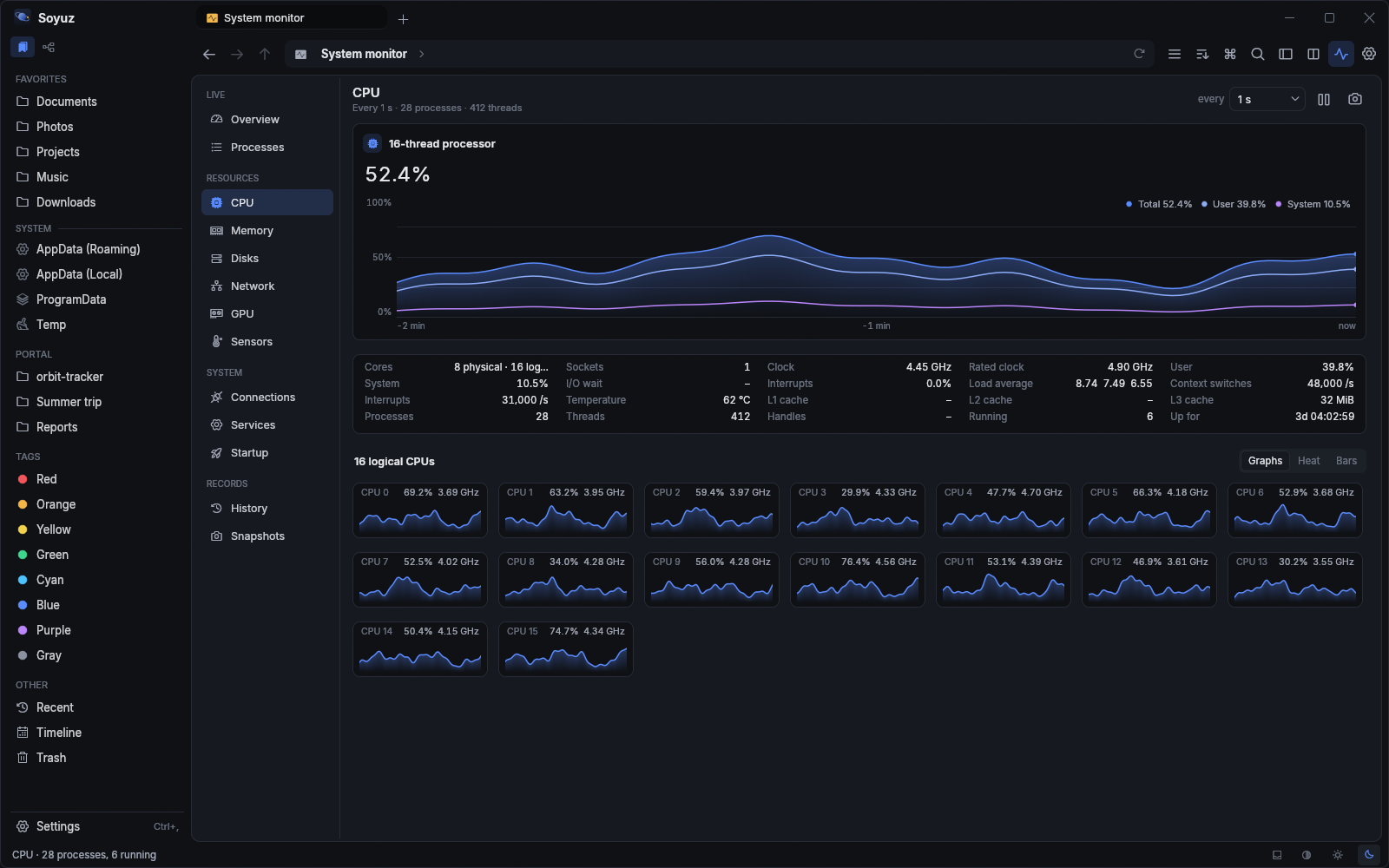
The monitor's CPU page: a graph of total, user and system load, figures such as clock, load average and context switches, and a small graph for each of sixteen logical CPUs.
The CPU page, with a graph for each logical CPU.

The whole explorer, in a terminal

Run soyuz --tui in any terminal, locally or over SSH, on Windows, macOS and Linux. It is the same app with the same jobs, undo and settings, drawn in text instead of a window.

Everything the window does

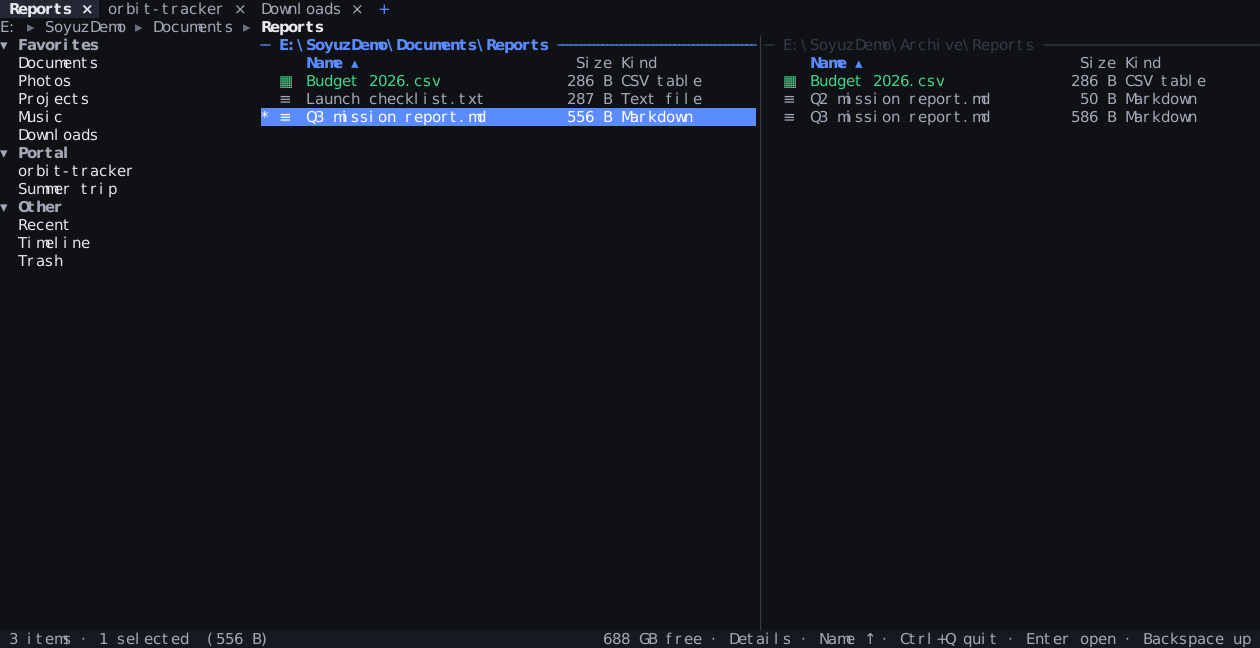
Tabs, dual and quad panes, the sidebar with drives and devices, every view and every dialog. File operations run as the same background jobs, with conflict prompts and full undo. Settings, bookmarks, tags and workspaces are shared with the window.

soyuz --tui start itF9 dual paneCtrlQ quit

Soyuz in a terminal: tabs along the top, a breadcrumb path, a sidebar with favorites and drives, and two panes of files with size and kind columns.
Dual panes and the sidebar, drawn with text characters.

Keyboard and mouse, on any terminal

The command palette, context menus, Quick Look with pictures on terminals that can show them, the preview pane, the video player, editors, folder compare and sync, the treemap, the system monitor, remote locations and the assistant. Click, scroll and drag with the mouse, or never touch it. Legacy consoles and Windows Terminal get their own shortcuts, so every command stays reachable.

CtrlK command paletteSpace Quick LookAltJ jobs

The command palette open in the terminal, listing copy commands with a short description and their shortcuts.
The command palette, with each command's shortcut.

A mode for screen readers

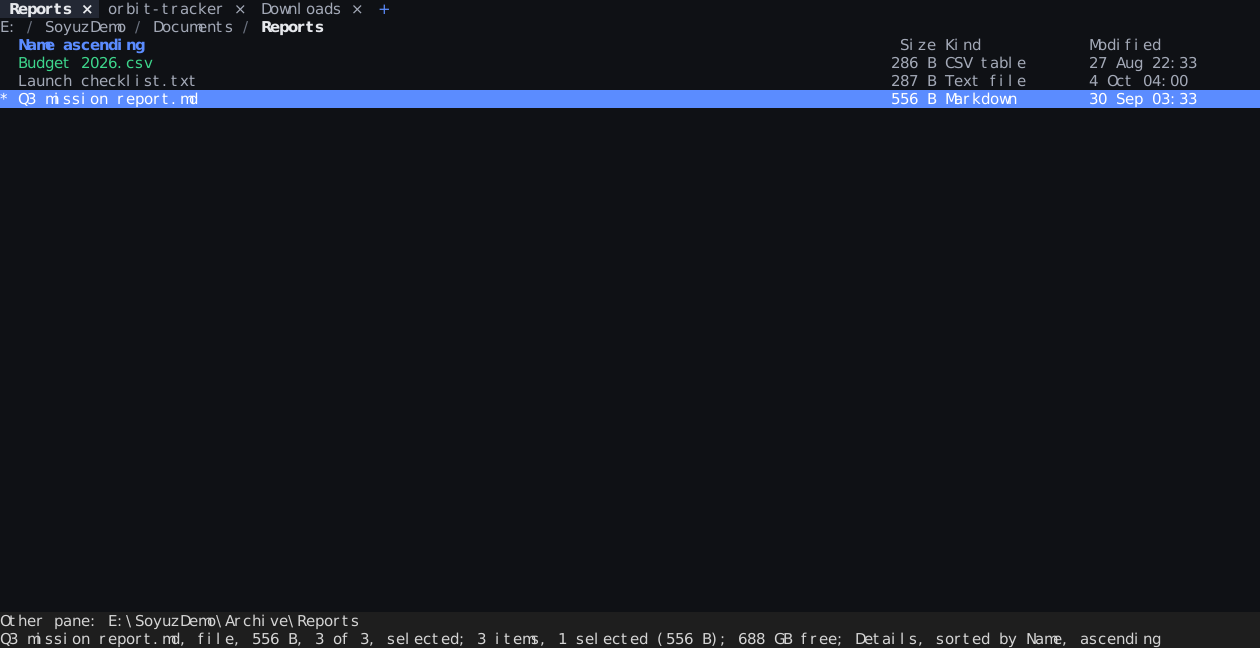
Screen-reader mode drops box drawing and icons, shows one pane as plain lines, puts the terminal cursor on the focused item and turns the status line into a sentence that starts with it. Switch it on in the settings, from the palette or with --screen-reader for a single run.

soyuz --tui --screen-reader

Screen-reader mode: a plain list of files without borders or icons, an Other pane line and a status sentence that begins with the selected file.
Screen-reader mode: plain lines and a status sentence.

Also on board

The tools you would otherwise install separately, built in and working together.

Quick share

Send files to a phone or another computer on your network: Soyuz shows an address and a QR code to open in any browser. Sharing is read-only and stops when you close the window or the time runs out.

Disk health

Drive cards show each drive's health, temperature and wear, read from SMART and the NVMe health log without administrator rights. A failing drive raises a warning.

Previous versions

Restore a file or folder from Windows shadow copies, and see which lines changed in a text file before you do. Reading shadow copies needs administrator rights.

Small things that add up

Clipboard history for file sets, focus mode, a program browser for Open with that remembers your choice, default apps per file type inside Soyuz, and copies that clone duplicate content instead of writing it twice, on volumes that can.

Search and the index

Search file names and contents, PDFs included, with a compact query language. Enable the background index and searches across all your folders return in milliseconds. Save any query as a smart folder that keeps itself up to date.

kind:image size:>5MB modified:<7d -draft

Images over 5 MB changed this week, leaving out drafts.

Remote locations

SFTP, WebDAV, FTP and FTPS, S3-compatible storage and SMB network shares, with cached listings. Connect to server finds servers on your network. Transfers between any of them are ordinary, resumable jobs.

Archives as folders

Browse zip, 7z, tar, RAR, ISO, CAB, deb and rpm without extracting them, split zips and cabinet sets too. Create and extract archives, including password-protected ones, and edit zip, 7z and tar files in place.

Tags and folder colors

Eight color tags that stay with files as you move and rename them in Soyuz, folder colors and emblems, a drop shelf for gathering files, and a git status column.

Built-in editors

A text editor with syntax highlighting and regex find and replace, a hex editor for files of any size, and an image editor for quick crops and rotations.

Scripts and automations

Sandboxed Rhai scripts add actions, menu entries, columns and previewers. Folder rules move, rename or tag new files automatically. Every change asks for approval and can be undone.

Command line

soyuz cp, mv, rm and more queue jobs in the open window, with progress and conflict prompts shown there, or run directly in the terminal.

Accessible

Screen-reader support, a high-contrast theme, reduced motion, large touch targets, interface zoom, a text size that reaches every surface and a visible focus indicator everywhere. The terminal UI has a screen-reader mode of its own.

An assistant that asks first

Optional and off by default. Bring your own key for Anthropic, OpenAI or Gemini, or run a local model through Ollama, LM Studio, llama.cpp or vLLM. The assistant never touches your files directly: it proposes, you decide.

  1. Ask in plain words

    “Move last month’s invoices into a folder per client.” Type ? in the command palette, or open the assistant panel.

  2. Review the plan

    You receive a dry run listing every move, rename and delete it would make, before anything happens. Edit the plan or uncheck items first.

  3. Approve, and it runs as a job

    The approved plan runs like any other job, with conflict handling and full undo.

  • API keys stay in the operating system’s credential store, never in the config file.
  • Per-folder permissions decide what may be shared with a cloud model. File names and contents are treated as untrusted data.
  • An MCP server lets other assistants drive Soyuz under the same approval rules, and an audit log records what they did.

Download Soyuz

Native builds for Windows, macOS and Linux, free of charge. Every release file is published with a SHA-256 checksum.

Platforms

Windows 10 and 11 x64
Supported Installer or portable zip, with Mica, Snap Layouts and the system accent color.
macOS Apple silicon
Supported Keychain, Finder clipboard, LaunchServices and Time Machine integration.
Linux x64
Supported Wayland and X11, freedesktop trash and thumbnails, UDisks2 drives and Secret Service.

Pick a package

  • Windows installer (.msi) Installs for your user account; no administrator rights needed.
  • Windows zip Unzip anywhere and run soyuz.exe. The portable edition keeps its settings beside the app, ideal for USB drives.
  • macOS (.tar.gz) For Apple silicon Macs. Unpack and run soyuz.
  • Linux (.tar.gz) Unpack anywhere and run soyuz.

Release builds are not code-signed yet. On first launch, Windows SmartScreen may ask for confirmation (More info, then Run anyway), and macOS asks once as well (right-click, then Open).

Get the latest release

Built with AI, guided by human judgement

Soyuz was developed entirely with AI. Every line of code, every test and most of this page were written by models, while a person set the direction, tested each change on real machines, challenged anything that felt wrong and held the result to a high standard. It shows how far that partnership can go.

↑↓ moveEnter goEsc close

Keyboard shortcuts for this page

CtrlK or /
Jump to a section
J / K
Next / previous section
T
Switch light and dark theme
D
Go to Download
?
Show this list
Esc
Close